

Let's do it together!
Step 1: Log into Zoho CRM
Access your Zoho CRM account to begin adding sales orders.
Step 2: Access Leads
Navigate to the leads section to find potential customers.
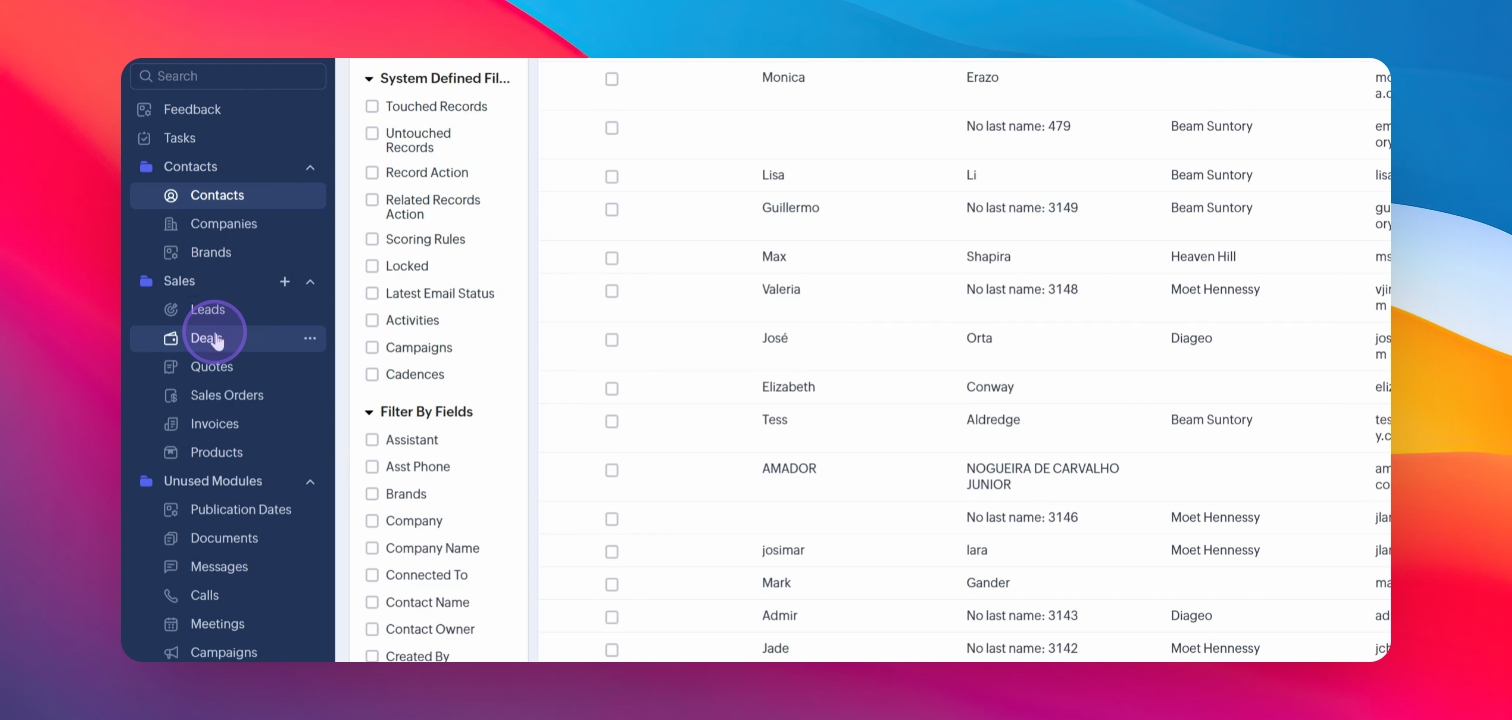
Step 3: Start a Deal
Select 'Deals' to begin recording your sales process.
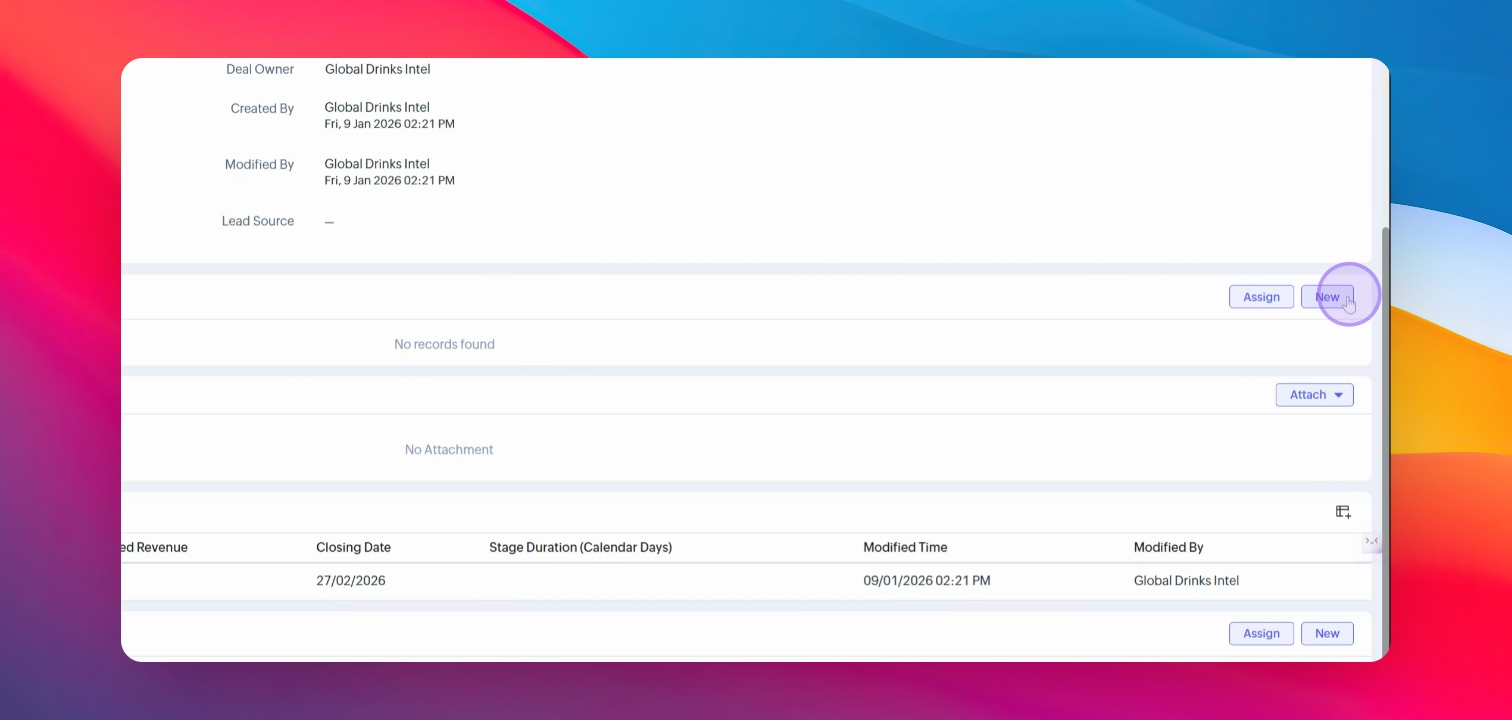
Step 4: Create a Quote
Initiate a quote for your potential customer, e.g., Heineken.
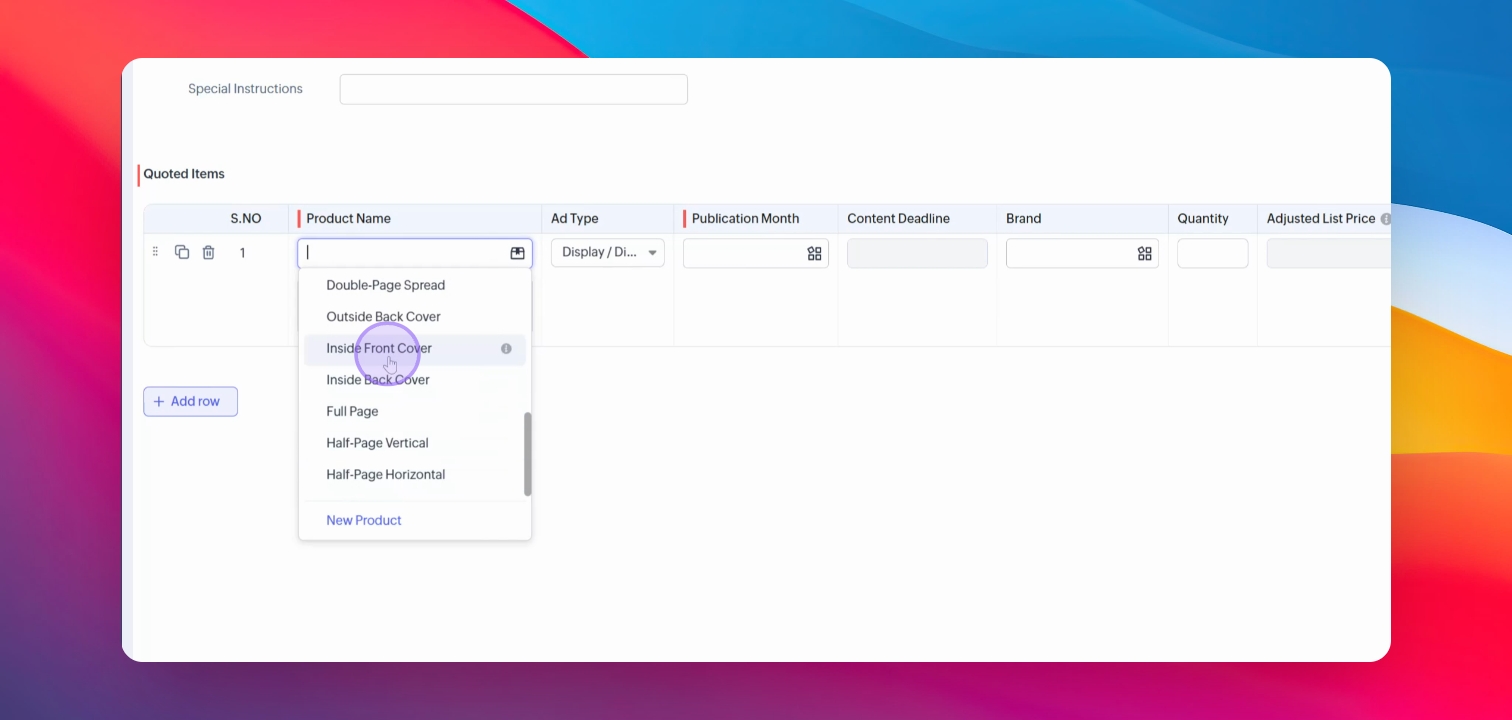
Step 5: Select Ad Spot
Choose your ad spot from the available options.
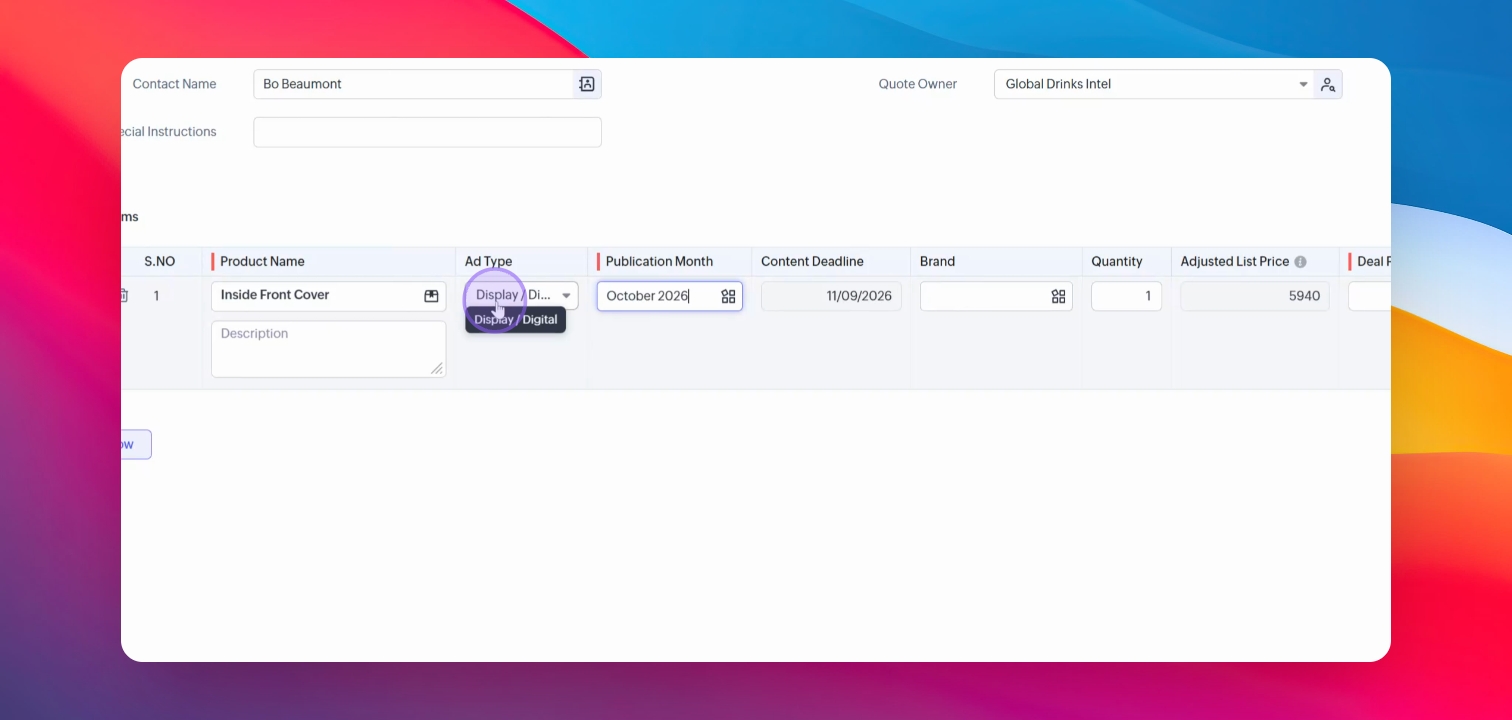
Step 6: Adjust Ad Type
Change the ad type if needed, which affects pricing and deadlines.
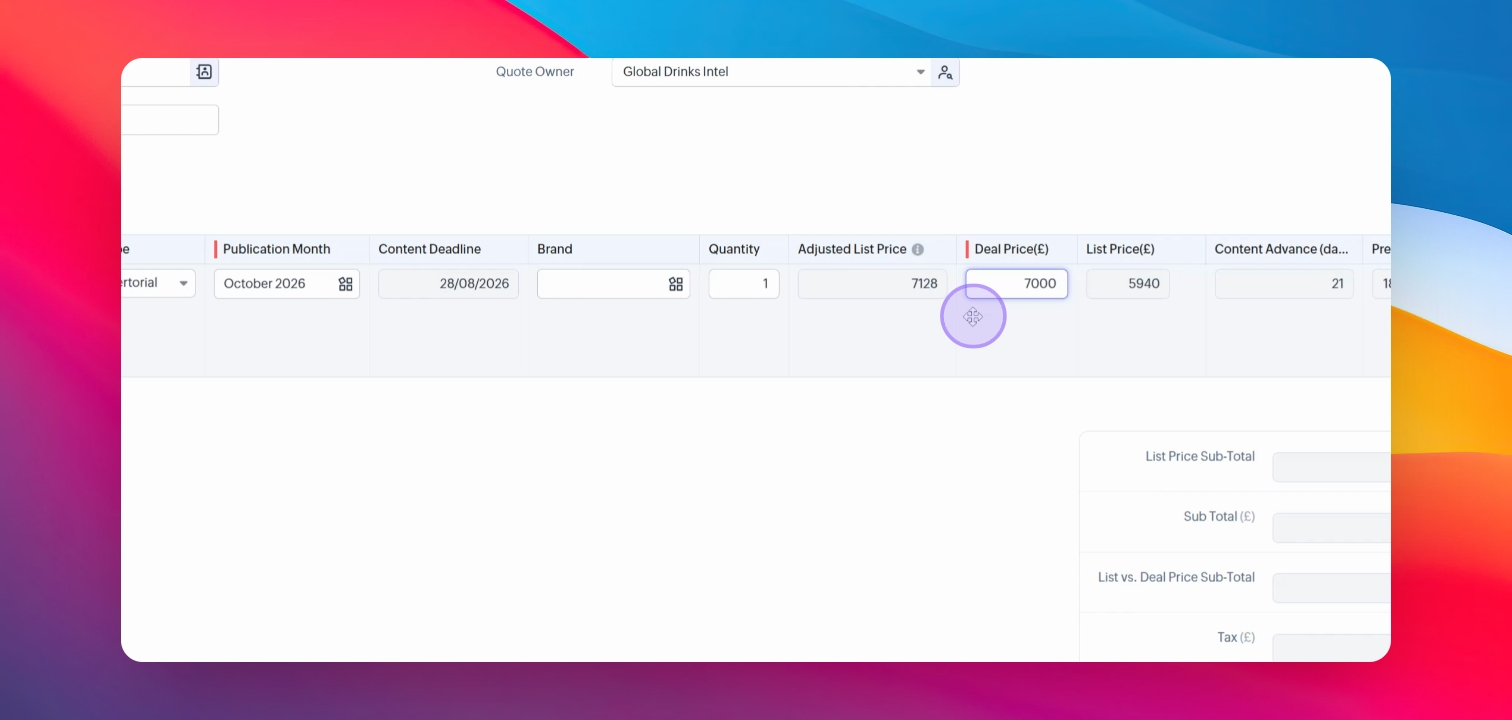
Step 7: Set Deal Price
Input a deal price to calculate discounts compared to the list price.
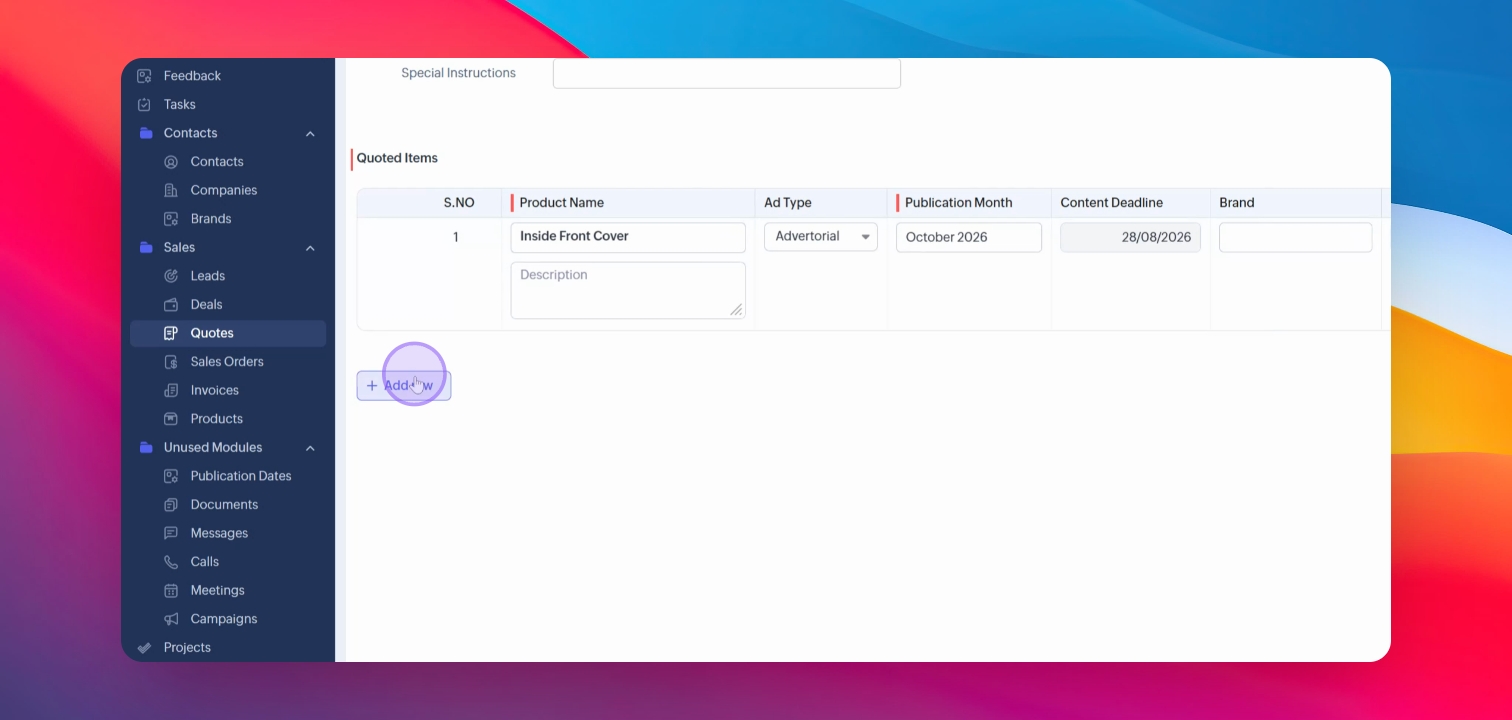
Step 8: Add Multiple Ad Spots
Add additional ad spots if necessary.
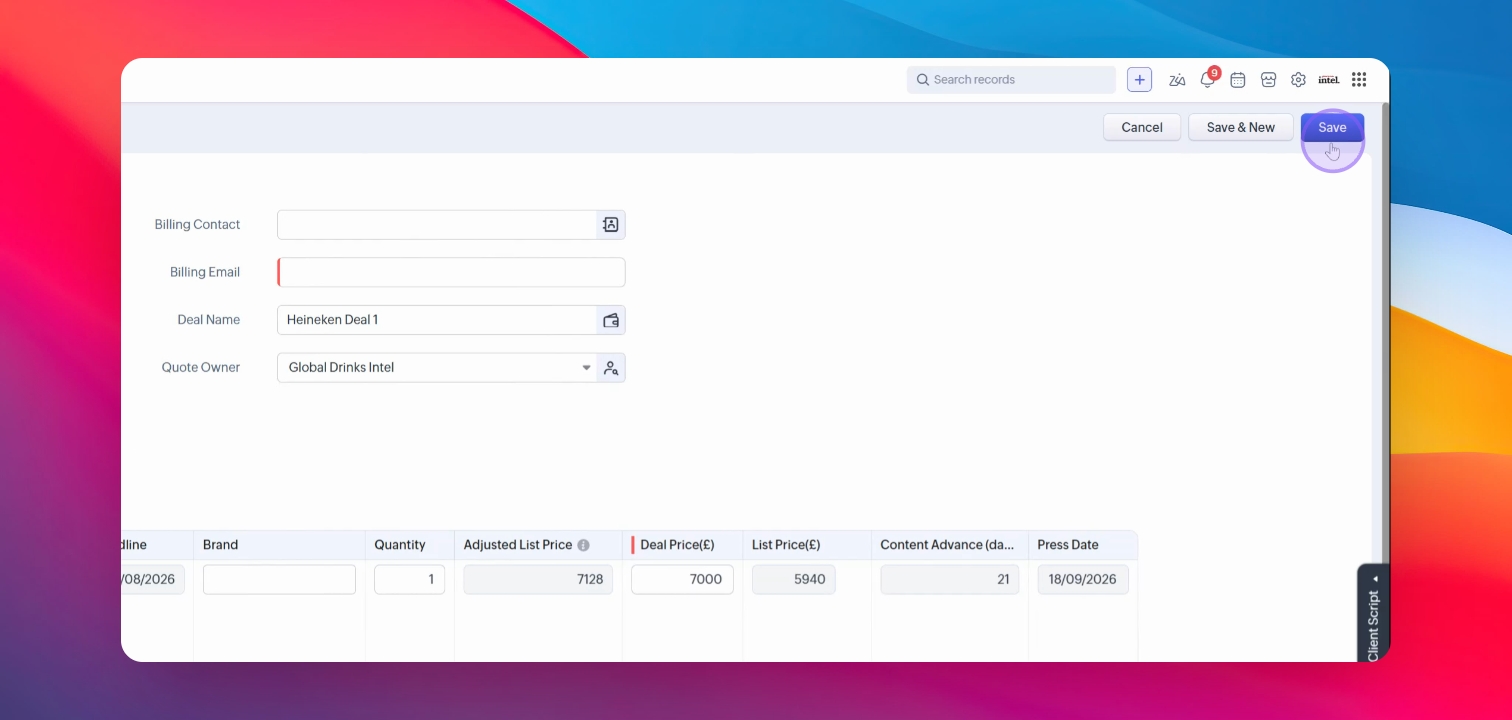
Step 9: Save the Quote
Click save and ensure all required fields are filled.
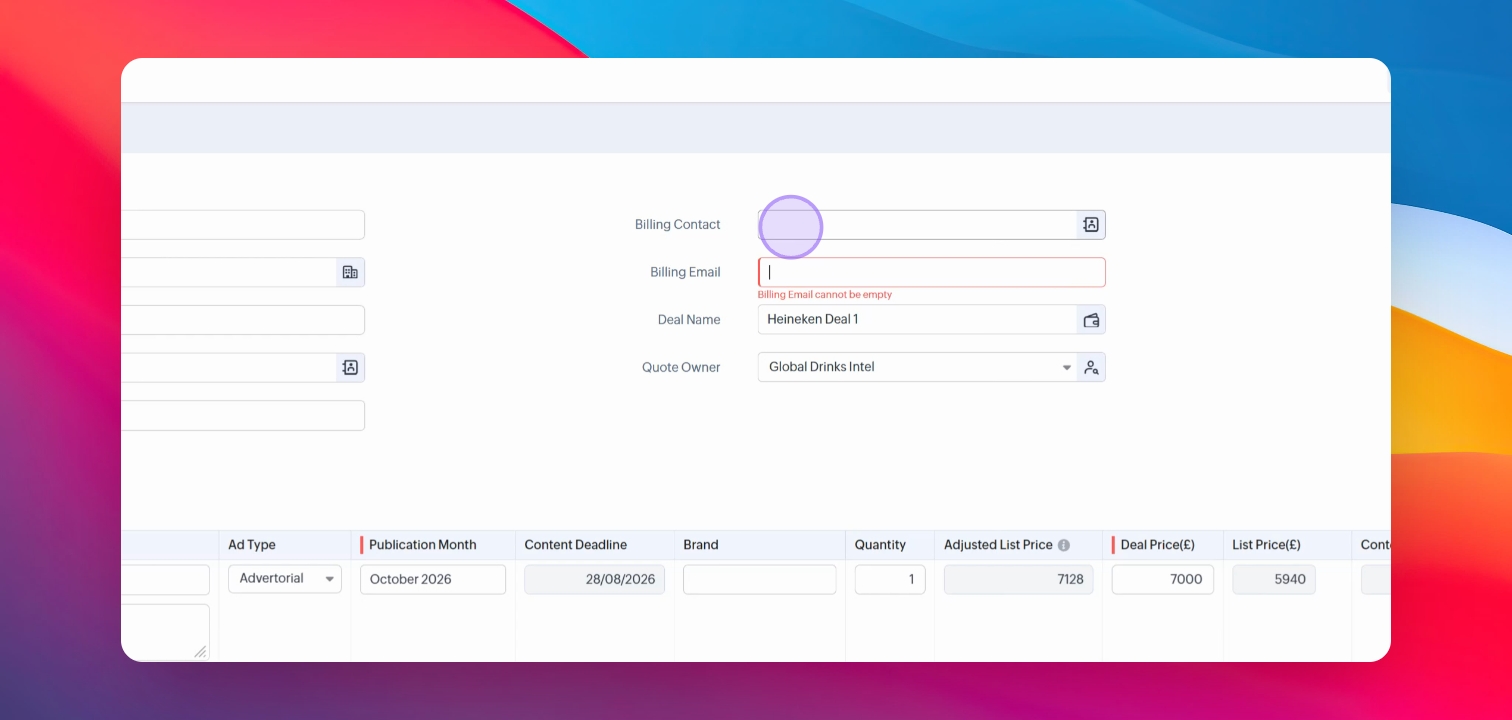
Step 10: Enter Billing Email
Provide the necessary billing email associated with the customer.
Step 11: Convert Quote to Sales Order
Once accepted, convert the quote into a sales order.
Troubleshooting
Quote not saving
Ensure all required fields are filled before saving.
Billing email issues
Confirm the correct billing email from the finance department.
FAQ
What is the purpose of Zoho CRM?
It helps track sales, forecasting, and reporting efficiently.
Can I add multiple ad spots?
Yes, you can add multiple spots for your deals.
